Short answer: to build a Google Workspace Studio flow, open studio.workspace.google.com, click the + (New flow), choose one starter, add your steps, pass data between them with variables, give it a name, click Test run, then Turn on. Or type the task into the Discover box and let Gemini draft the whole thing for you to edit. Either way, your first flow takes about fifteen minutes.
Studio flows are part of our Gemini course, and the gap between a flow that works in a demo and one people still use a month later is almost always in the setup details below. So this is the long version.
Before you start: three checks
- Is Studio switched on for you? If the site says you do not have access, your Workspace admin needs to enable it for your organisational unit. Changes can take up to 24 hours.
- Have you accepted the Gemini terms? When we opened the builder on one of our test accounts, the Ask Gemini step showed “Please go to Gemini to accept the Gemini terms of service” and would not save. Open
gemini.google.comonce, accept, and come back. - Do you have test data? Test runs take real actions. A test of “send a reply” sends a reply. Use a dummy Sheet, a test Chat space and an email you send to yourself.
The seven steps
Building a Workspace Studio flow from scratch
- 1Open a new flowGo to studio.workspace.google.com and click the blue + button. You land on an empty canvas with “Choose a starter” and “Choose a step”.
- 2Choose one starterPick the event or schedule. A flow can only have one. Add conditions here (a sender, a subject keyword, a folder) so it does not fire on everything.
- 3Add stepsClick “Choose a step”, then “Add step” for each one after. Up to 20 per flow. Put a Decide or Check if early so later steps only run when they should.
- 4Wire in variablesIn any text field, click Variables + and pick data from earlier steps: the email subject, the sender, Gemini’s summary. This is what makes the flow specific.
- 5Name itClick the pencil next to “Untitled flow”. Use a name a colleague would understand: “Sales inbox: requests to Tasks”, not “Flow 3”.
- 6Test runClick Test run, then Start. Open the Activity tab and read each step’s input and output. Fix prompts until the output is right three times in a row.
- 7Turn onClick Turn on. The flow now runs without you. Check Activity daily for the first week.
Writing the Gemini steps so they actually work
The most useful line in Google’s help centre is this: Gemini does not know about the other steps in your flow. Each AI step only sees what you put in its prompt. So “write a polite reply” fails, while “write a reply to [email body] from [sender], confirming we received their request and giving the reference [extracted order number]” works.
- Use Extract before Ask Gemini. Pull the order number, amount or date into its own variable first. It makes the later prompt shorter and far more reliable.
- Use Decide for judgement, Check if for facts. “Is this a complaint?” is a Decide. “Is the amount over RM5,000?” is a Check if.
- Point Gemini at a source. Type
@to reference a Drive file, such as your price list or refund policy. By default Gemini can also search the web and your Workspace data; you can restrict a step to “Web only”. - Save the house style as a Skill. If three flows all need “write like our customer service team”, write it once as a Skill and reuse it.

Six flows worth copying
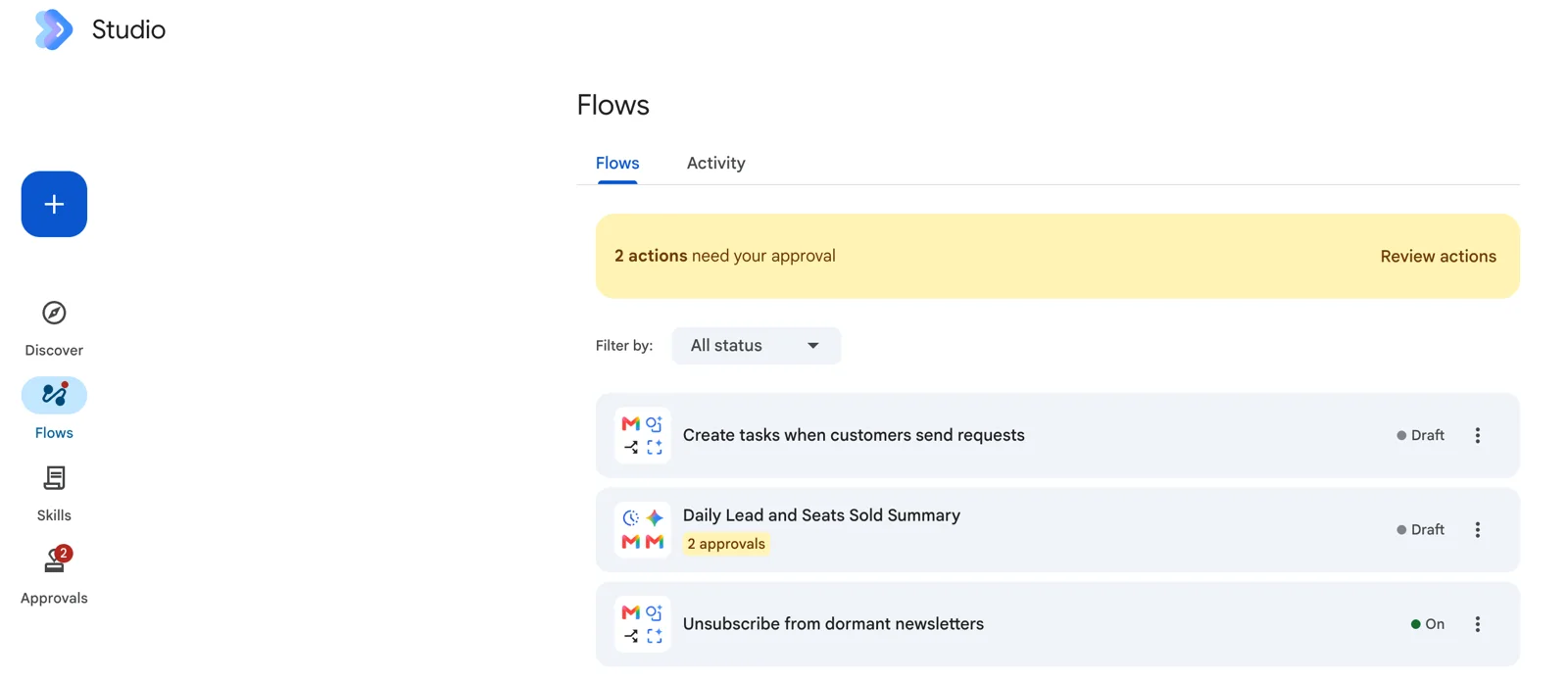
These are patterns that suit most Malaysian teams. Three of them are the flows in the screenshot above.
| Flow | Starter | Steps | Good for |
|---|---|---|---|
| Customer requests to tasks | When I get an email (filter: to sales@ or support@) | Decide → Extract → Create a task → Notify me in Chat | Sales, support |
| Daily lead and seats-sold summary | On a schedule (weekdays, 8:00am) | Get sheet contents → Summarize → Send an email (with approval) | Training, events, retail |
| Supplier invoice filing | When I get an email (has attachment, subject contains “invoice”) | Add email attachments to Drive → Extract → Add a row | Finance |
| Meeting follow-up | When meeting outputs are ready | Summarize → Draft an email → Create a task | Everyone |
| Form response triage | When a form response comes in | Decide → Check if → Post in a space | HR, operations |
| Newsletter clean-up | On a schedule (weekly) | Recap unread emails → Add or remove labels → Archive an email | Everyone |
Starter and step names as they appear in Workspace Studio, September 2026.
The daily summary is the one I would build first if you run any kind of sales. A Sheet of leads is already there; a flow that reads it at 8am, writes three sentences on what changed, and emails the team saves a stand-up meeting. Putting an approval on the send step means nobody gets a half-baked summary while you are still tuning the prompt.
When the flow misbehaves
- It never runs. Check the starter conditions, and that the flow shows On, not Draft.
- It runs too often. Narrow the starter. You are limited to 25 flows, 20 steps each, and a daily cap on total runs, with Google’s limit enforcement starting 1 October 2026.
- The AI output is vague. The prompt is missing variables. Add the email body or extracted fields.
- It stopped and you got an error in Gmail’s side panel. You probably hit the daily run limit. It resets after 24 hours; turn off flows you do not need.
Going further
From 21 September 2026 (Rapid Release) and 30 September (Scheduled Release), admins can allow custom starters and steps written in Apps Script, webhooks, and integrations with Asana, Confluence, HubSpot, Jira, Mailchimp, QuickBooks, Salesforce and Slack. That pushes Studio into territory that used to need n8n or Make. Where the line now sits is covered in Workspace Studio vs n8n vs Copilot Studio. For the product overview, start at what Google Workspace Studio is.
Two hands-on days on Gemini in Gmail, Docs, Sheets and Meet, then building governed flows and agents on your own work. In-house for your team, on your Workspace tenant.
Public dates coming soon — in-house classes run on your dates.
HRD Corp claimable. AITraining2U is an HRD Corp registered training provider. Our public and in-house courses are claimable under the HRD Corp Claimable Courses (SBL-KHAS) scheme, and we prepare the grant paperwork with you. See HRDC-claimable AI training: courses, costs and how to claim.